See the session. Start with the context.
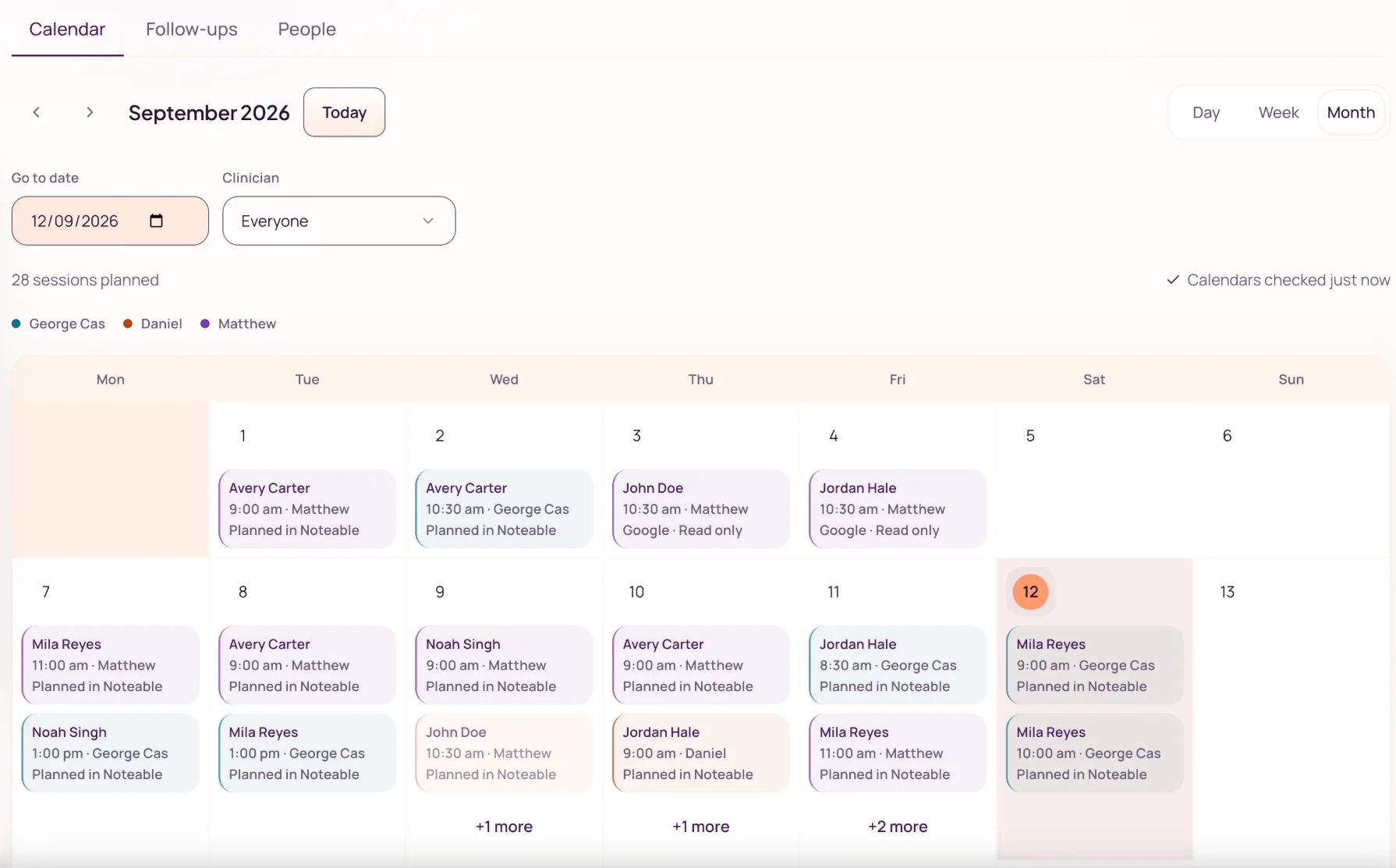
Plan your team’s sessions and bring chosen calendar appointments into view. Open the client record for what works, recent changes, current goals, and follow-ups before you arrive.
14 days free. No card required. Up to 5 trial members, including you.
Shared calendars lead into the same lasting client record.
01 · Plan
Make room for the next session.
Create one-off and repeating sessions, assign the clinician, and keep the client connected to the appointment.
02 · Connect
Bring the calendar you use.
Connect selected Google or Outlook calendars read-only. Confirm the client for an appointment and optionally remember its recurring series or exact title in that calendar. Apple connections remain personal-only.
03 · Prepare
Open more than an appointment.
Move into the client record to review confirmed strategies, changes since your last session, goals, and owned follow-ups. The source notes stay within reach.
Ready to see it?
Give the next session a prepared team.
Plan a session, review the draft, and confirm what matters. Invite your team to build the shared client record together.
- Shared client context
- Follow-ups on the record
- Your team reviews every note
14 days free. No card required. Up to 5 trial members, including you.